
How to Connect WordPress
Connect a self-hosted WordPress 5.6+ site using its built-in Application Passwords. Your site must use HTTPS.
Finding Your WordPress Username
Use your WordPress username and an account with permission to publish posts.
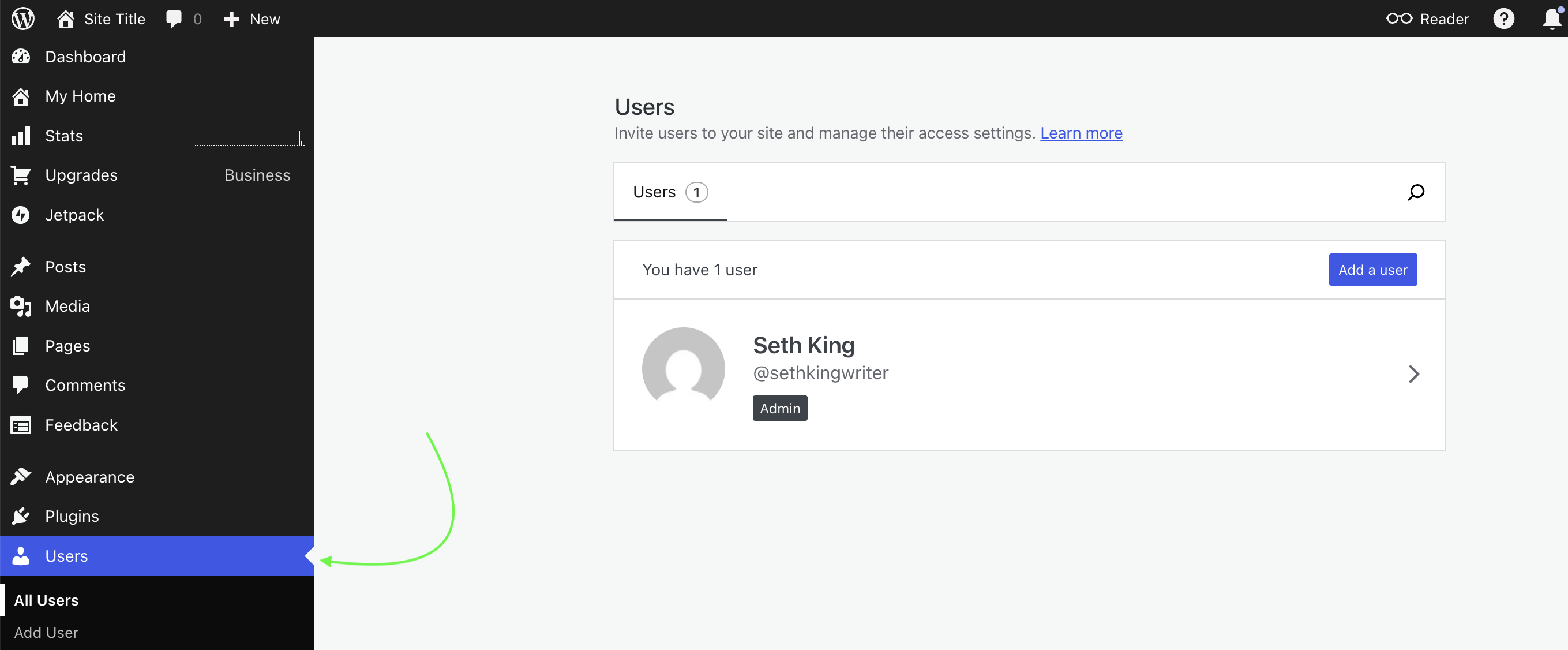
Steps
- 1
Open your self-hosted WordPress dashboard
Navigate to Users → All Users in the sidebar
- 2
Find your user account
Look for your name in the users list
- 3
Check your role
Use an Author, Editor, or Administrator account that can publish posts
- 4
Use your username
Enter your username (not email) in the TrendHopper field
Important
This connection is for self-hosted WordPress. WordPress.com-hosted sites use a different API and are not supported yet.
How to Create an Application Password
Use a WordPress application password — not your login password — to securely connect TrendHopper. Application Passwords are built into WordPress 5.6 and newer.
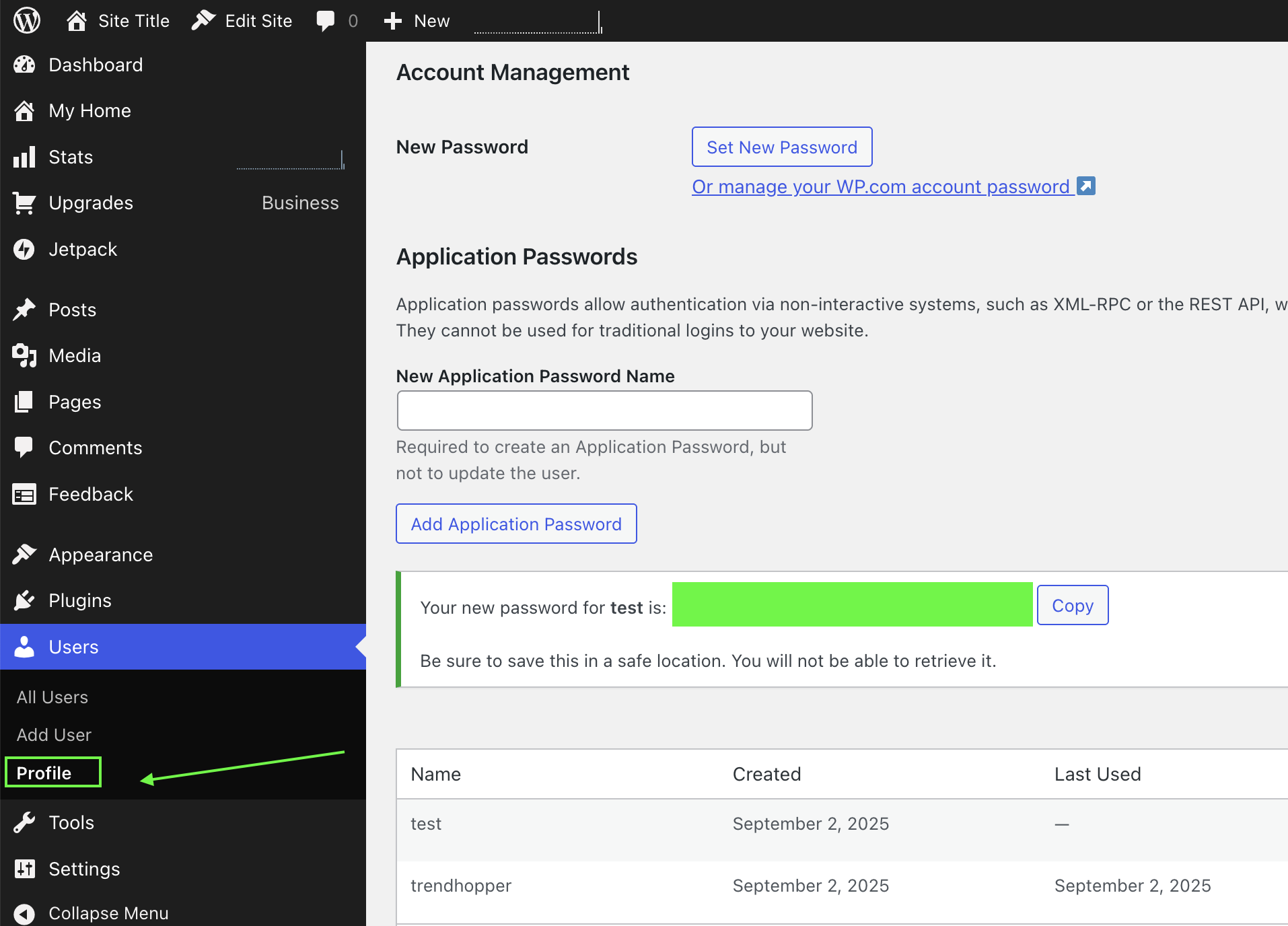
Steps
- 1
Open your WordPress profile
Navigate to Users → Profile
- 2
Find the Application Passwords section
Scroll down to Account Management → Application Passwords
- 3
Create a new application password
Enter a name like "TrendHopper" and click "Add Application Password"
- 4
Copy the generated password
Copy it once, then paste it into TrendHopper under Settings → Integrations → WordPress. WordPress displays spaces between groups; TrendHopper handles either format.
If Application Passwords are missing
Confirm the site uses HTTPS and WordPress 5.6 or newer. Security plugins and hosting policies can disable Application Passwords; ask the site administrator to enable them. If the site already uses the third-party JWT Authentication plugin, TrendHopper can use it as an advanced fallback after Application Password authentication fails.
Test the Connection
Save the settings, then choose Test connection. TrendHopper checks your credentials and publishing permission without creating or changing a post. If it fails, the message identifies issues such as an unreachable site, blocked REST API, disabled Application Passwords, incorrect credentials, or insufficient permissions.